
Job Application Autofill
How to Attach a Resume From iPhone Safari
Resume attachment is one of the easiest places to lose time on mobile job applications. A clean file workflow keeps the right resume ready before you reach the upload step.
Keep Resume Files Easy to Identify
Name resume files by target role or version, not by random export dates. When the file picker opens, you should know exactly which PDF to attach.
For example, use names like resume-product-manager.pdf or resume-customer-support.pdf.
Use PDF Unless the Employer Requests Something Else
PDF preserves layout better than many editable formats and is accepted by most career sites. If a form asks for DOCX, follow the employer's instruction.
Always open the file once after exporting to make sure it is readable on your phone.
Check the Upload Confirmation
After attaching your resume, look for the file name on the application page. Some forms silently fail when a file is too large or the connection drops.
Do not assume the resume attached until the page shows it.
Where JobHunter Helps
JobHunter is designed for iPhone job applications where you need to autofill fields and attach resumes without switching to a desktop workflow.
Prepare the File Before Opening the Application
Open the resume on your iPhone and inspect every page at normal zoom. Confirm that headings are not stranded at the bottom of a page, bullet points are visible, links are readable, and no text was clipped during export. A file that looks correct on a laptop can still reveal spacing or font problems in the mobile preview. Keep the final PDF in a predictable Files location or in JobHunter so the upload sheet does not turn into a search through downloads and message attachments.
Use a professional filename that helps both you and the recruiter, such as Mahmoud-Ashraf-iOS-Developer-Resume.pdf. Avoid names such as final-final-2.pdf. When you maintain role-specific versions, include the role family rather than the employer name unless the document is truly tailored for that single company.
Upload From Safari Step by Step
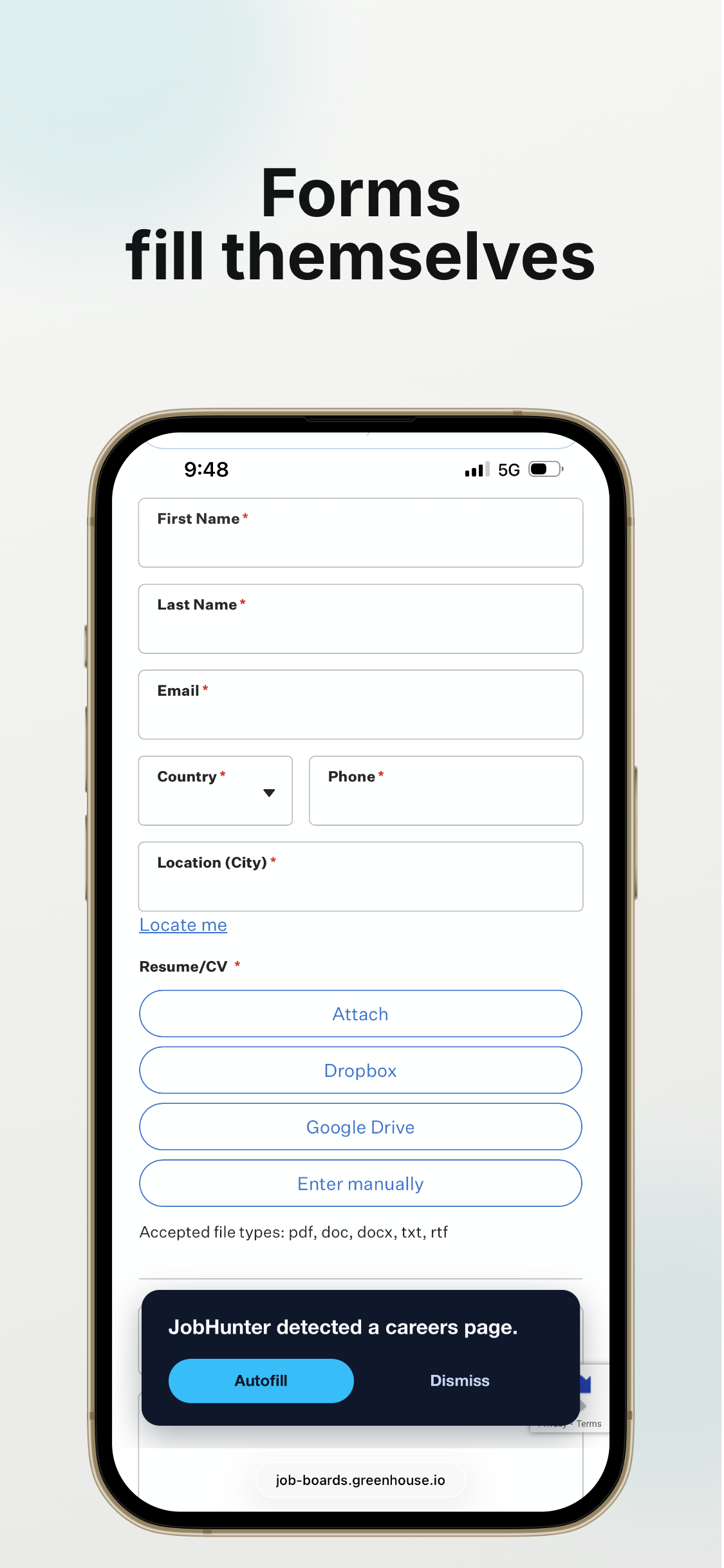
Tap the employer's upload control and choose the file source offered by iOS. Select the intended PDF, wait for the career site to finish processing it, and look for the filename beside the field. Do not navigate away while the upload indicator is active. If the form parses the resume into work-history fields, inspect those fields immediately because a successful upload does not guarantee a correct parse.
Some sites replace the upload silently when you choose a second file. After any replacement, confirm the displayed filename again. If the site requests DOC or DOCX, follow that instruction instead of forcing a PDF. If it rejects a valid file, check the maximum size, allowed extensions, filename characters, and connection before rebuilding the document.
Diagnose Common Mobile Upload Failures
A disabled upload button usually means another required field must be completed first. A file that appears to upload and then disappears may exceed the site's limit or lose connectivity. A blank preview can mean the PDF contains unsupported font or security settings. Export a fresh standard PDF, shorten the filename, and try once more rather than repeatedly tapping the same control.
When an employer provides no upload control, it may expect you to paste experience into the form. Treat the resume as your source of truth and keep titles, employers, and dates consistent. Do not send the document through an unrelated contact channel unless the listing explicitly asks you to.
Protect Resume Privacy on a Shared Phone
A resume contains contact details and employment history. Remove obsolete copies from public download folders, avoid storing sensitive documents in shared photo libraries, and confirm the destination before choosing a file. JobHunter's browser tools generate documents locally in the page; the employer receives a resume only when you deliberately attach it to the employer's application.
Final Attachment Checklist
- The file opens and every page is readable on iPhone.
- The filename is professional and identifies the intended role family.
- The displayed upload name matches the file you selected.
- Parsed employment fields match the PDF.
- No older resume remains attached after a replacement.
Frequently asked questions
Is PDF the best resume format for iPhone applications?
PDF is usually the safest because it preserves layout, but always use DOCX when the employer explicitly requests it.
How do I know the upload finished?
Wait for the progress indicator to stop and confirm that the correct filename appears beside the upload field or in the form's document section.
Why did the form import my resume incorrectly?
Complex columns, tables, icons, headers, or unusual date formats can confuse parsers. Use a clean ATS-friendly source resume and correct imported fields before submitting.